Friday 6 Nov 2026
What's new in ECS
A fresh look, a Gantt for every project, printing, and Health and Compare. Here is everything that changes.
A fresh look
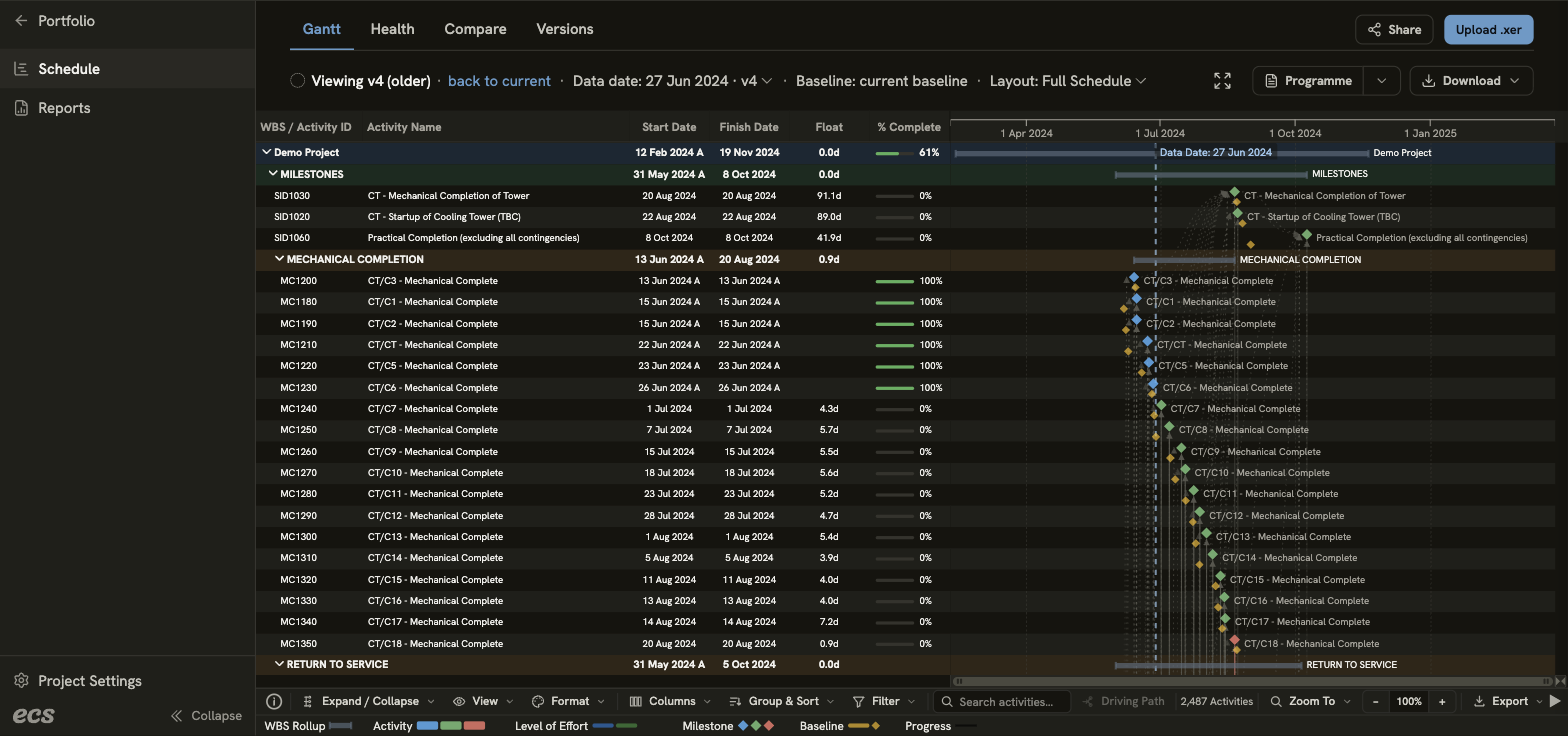
New look, light or dark
ECS has a new light design. Switch to dark with the moon button at the top right.
The side menu follows you
The side menu changes with where you are. The portfolio, each folder and each project show their own Projects, Schedule and Reports.
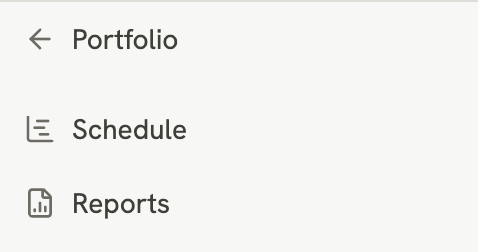
Folders have their own pages
Open a folder to see its own Projects, Schedule, Reports and Folder Settings.
A path bar at the top
The bar at the top shows your organisation, folder and project. Click your organisation's name to switch organisation. Click the project name to jump to another project in the same folder.

Projects open on Reports
Click a project to open its reports. Its schedule and settings are one click away in the side menu.
ECS opens where you work
When you sign in, ECS opens where you left off, or on the one report you use.
Your settings, in two places
Find your profile, notifications and password under your initials at the top right. Find your organisation's settings at the bottom of the side menu.
Your schedule in ECS
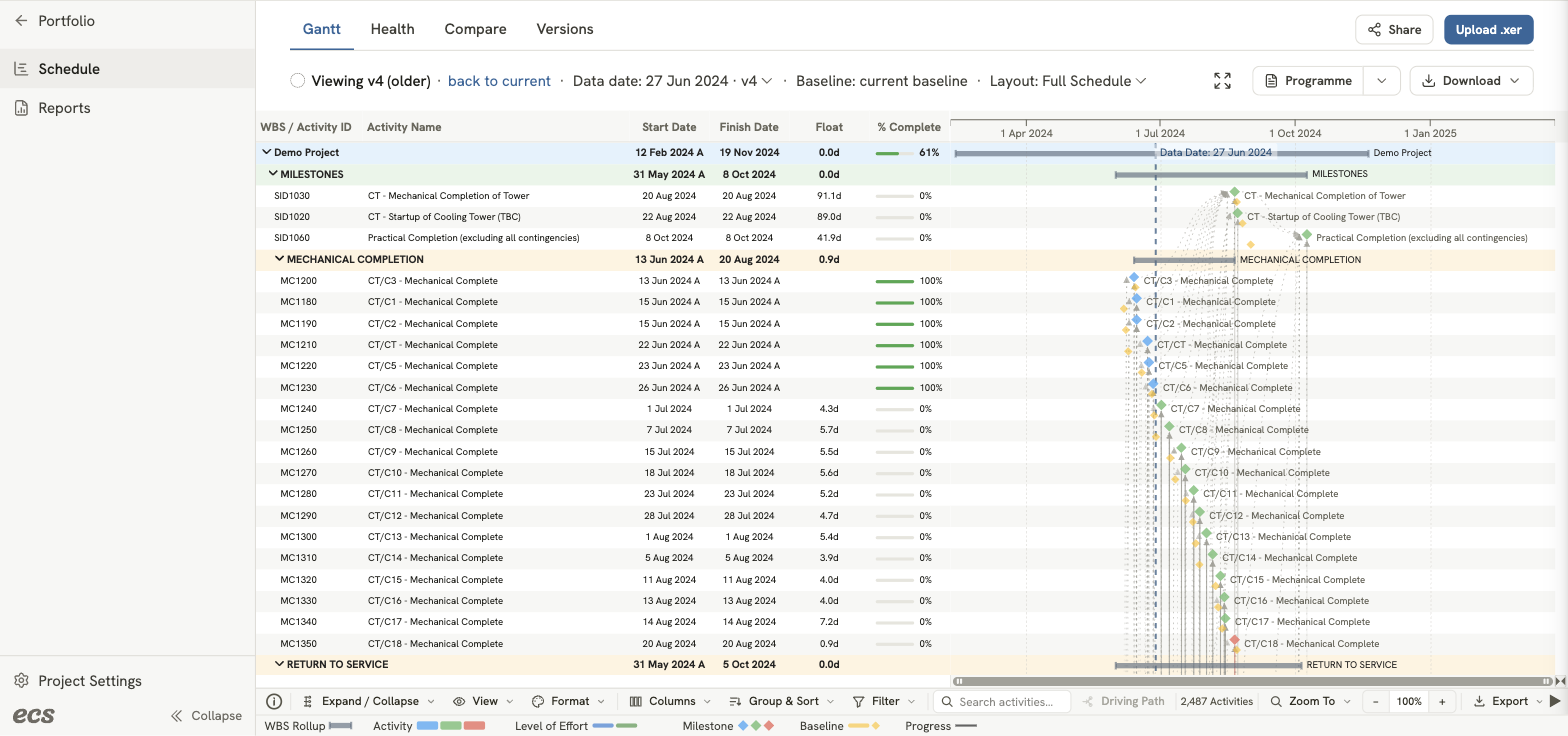
A Gantt for every project
Open a project and choose Schedule to see every activity of your P6 schedule as a Gantt chart. Pick an earlier version to see it as it was.
Schedules across projects
A folder and the portfolio each show the activities of every project inside, one band per project.
Saved layouts
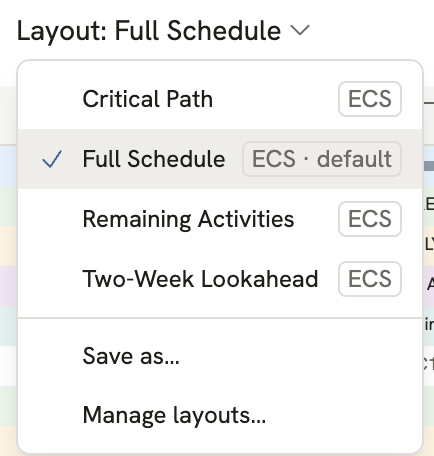
Save how the Gantt looks as a layout. Keep it for yourself, or share it with a folder or the whole organisation. Four layouts come ready: Full Schedule, Two-Week Lookahead, Critical Path and Remaining Activities.
Versions under Schedule
Every version you upload is in the Versions tab of the project's Schedule, with its details and download.
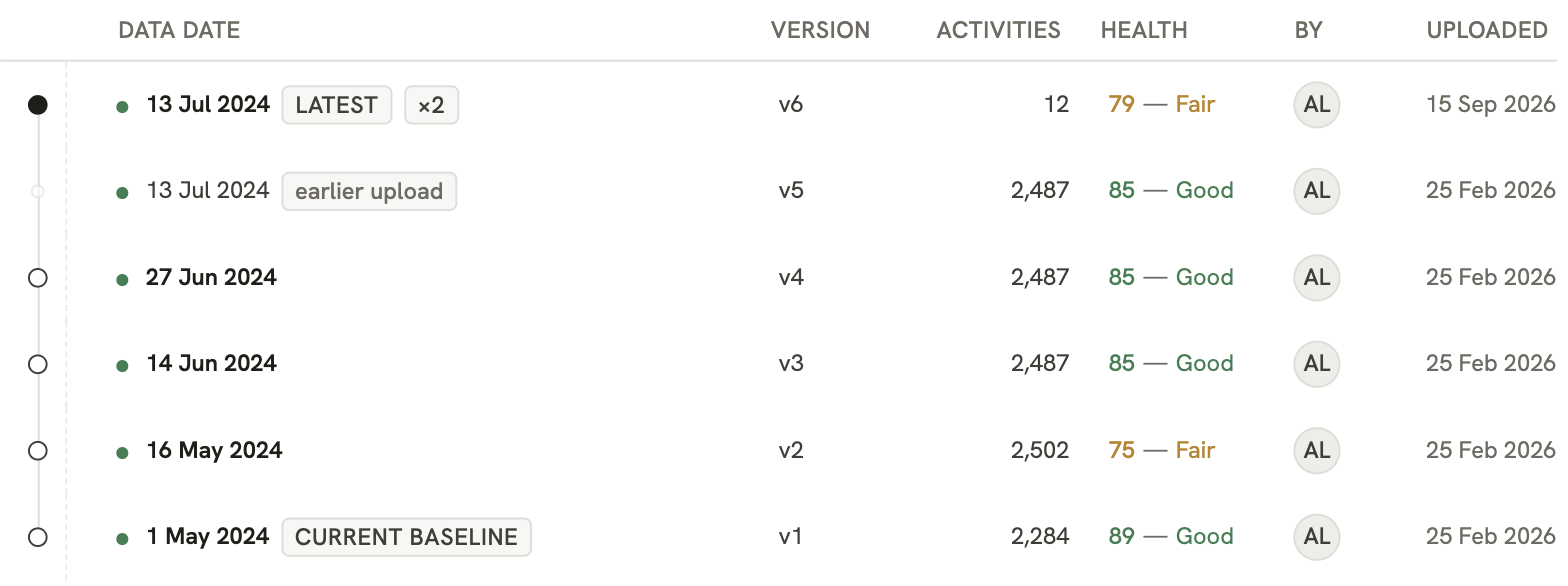
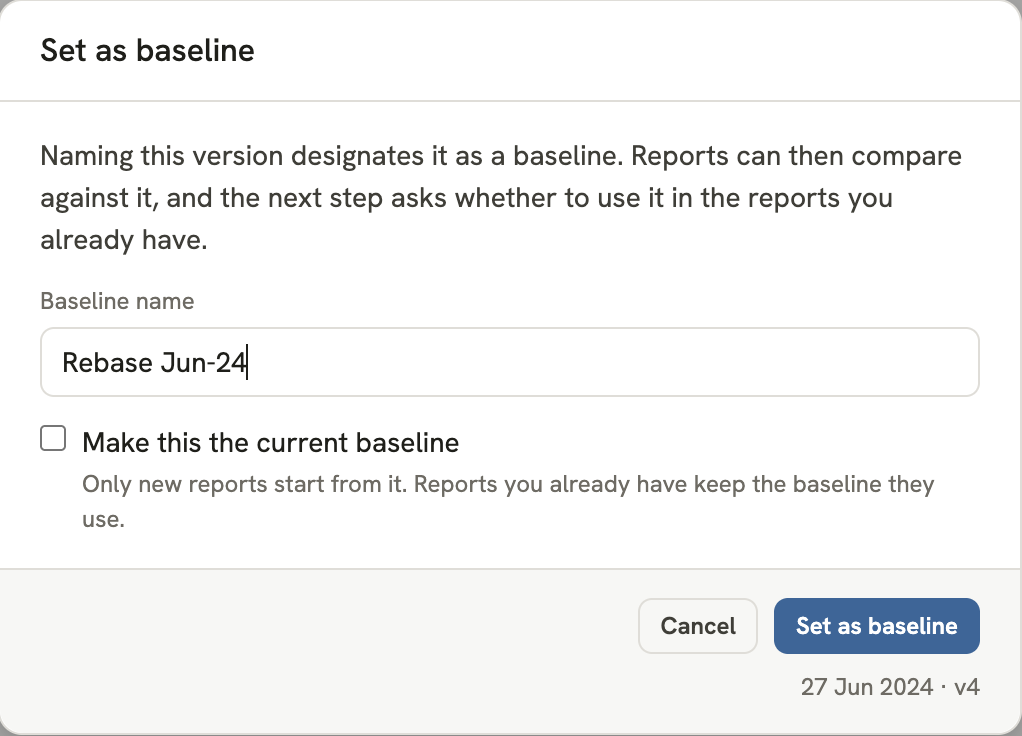
Named baselines
Give a baseline a name, such as Original or Rebase Mar-26. A project can keep several baselines. Choose which one is the current baseline.
One upload window
Every XER upload goes through one window, in two steps: Upload, then Review. ECS shows any warning about the file before you confirm.
Project ID
Project Code is now Project ID. ECS tells you as you type if another project already uses it.

Bring back what you removedAdmins
Bring back a removed project, folder, version, report or report update from Show removed. Admins can do this for 7 days. After that, ask us.
Copy a project into your organisation
Right-click a project in My Workspace and choose Copy into an organisation. Its reports come with it.
Print and send
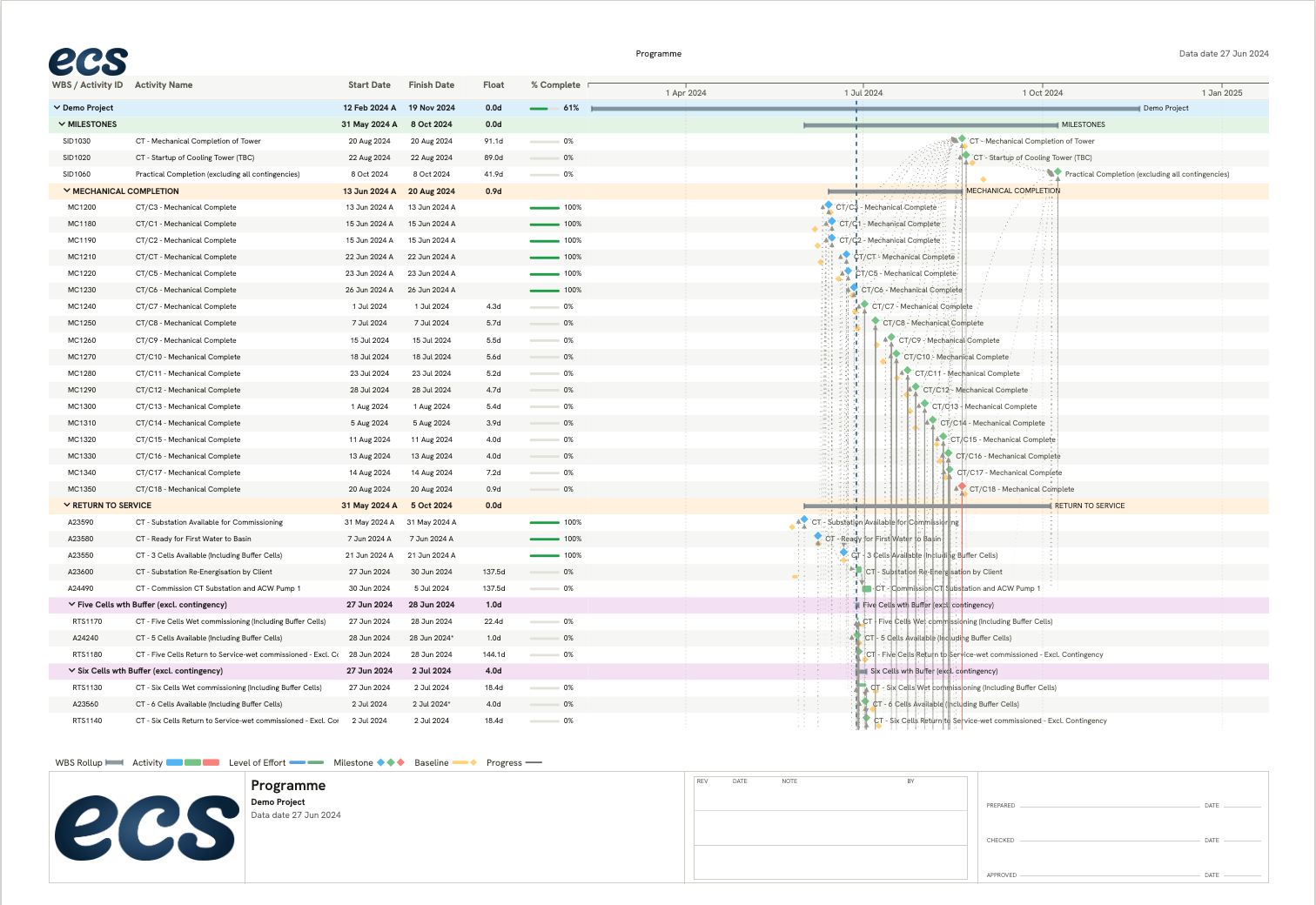
Your programme as a PDF
Press Programme on the Gantt to turn the schedule into a PDF. Make it yours with your logo, your own header and footer, a revision box, signatures and page numbers.

Download as a spreadsheet
Press Download on the Gantt to get the columns on screen as a spreadsheet, or the original XER.
Send by email
Press Send to send the programme to people on the project or to any email address. Send it once, or on a timetable such as every Friday.
Sent documents are kept
Every programme you print or send is kept with the schedule version it came from. See what went out, and when.
Page designsAdmins
Set up how your PDFs look in Page designs, for the whole organisation, a folder or a single project. Keep several designs, and give page 1 its own header and footer.
Revision tags
Tag a schedule version with a revision, such as Rev B. Printed pages show it in the title block and the revision box.
Health and Compare
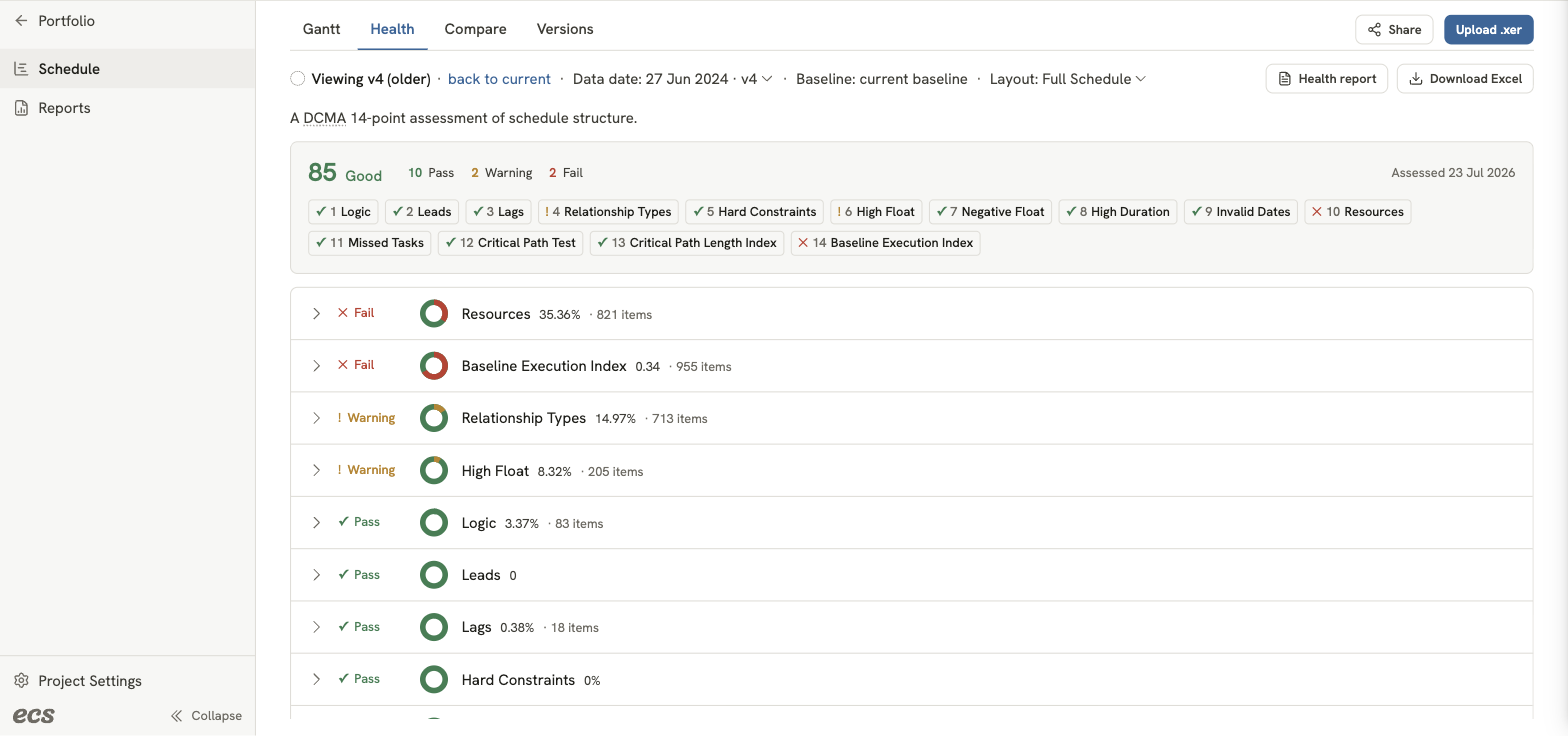
Schedule health check
The Health tab checks a schedule version against the 14 DCMA checks. It shows the activities behind each result. Download a Health report or an Excel file.
Health across projects
A folder and the portfolio each have a Health tab. It shows how many of their schedules pass each check.
Compare two versions
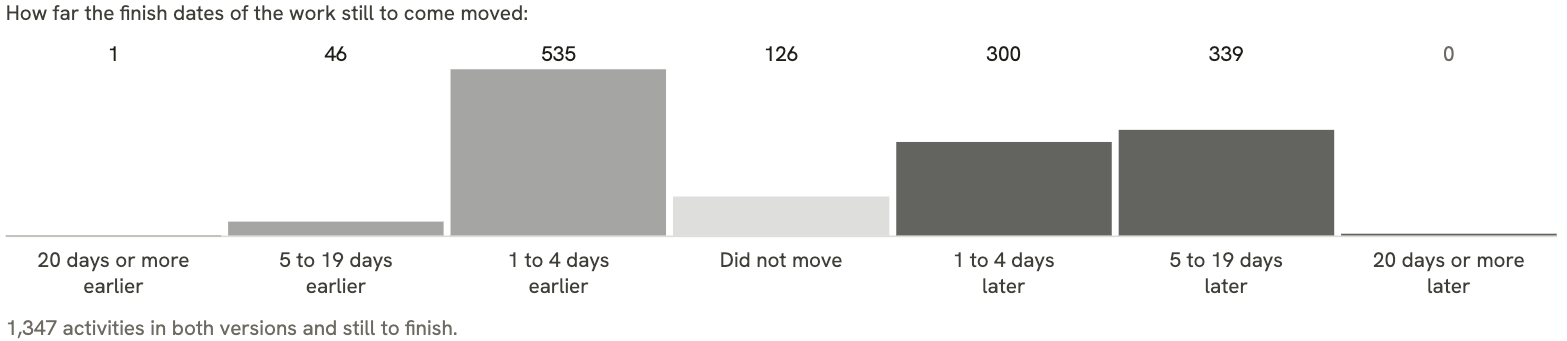
The Compare tab shows what changed between two versions of a schedule. Edit the written summary and send it. Download a Comparison briefing or an Excel file.
Reports
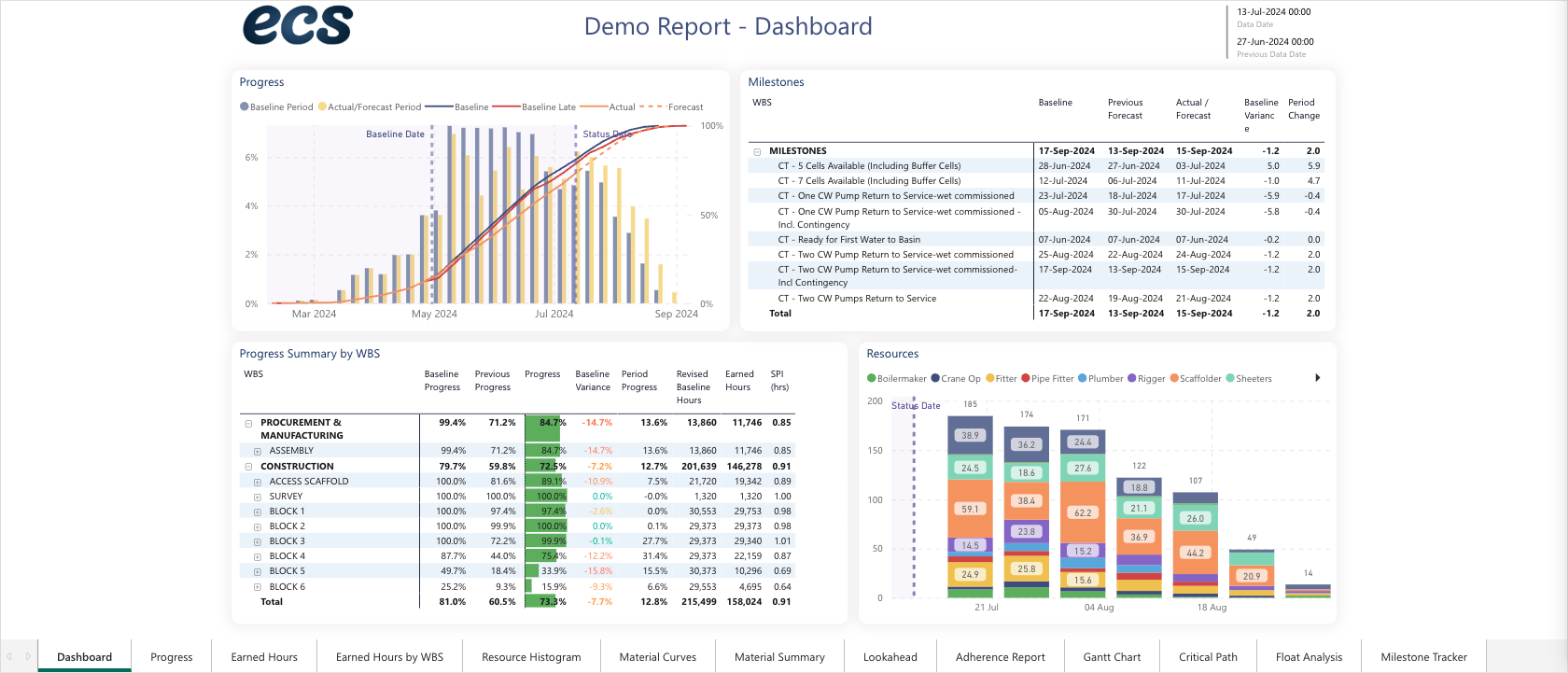
All your reports in one list
Open Reports to see every report in the portfolio, a folder or a project, grouped by folder and project. Each row shows the report's status, its last update and its data date. Search the list, share a report from its row, or open it and pick another report from its name at the top.

Report actions under ManageMembers
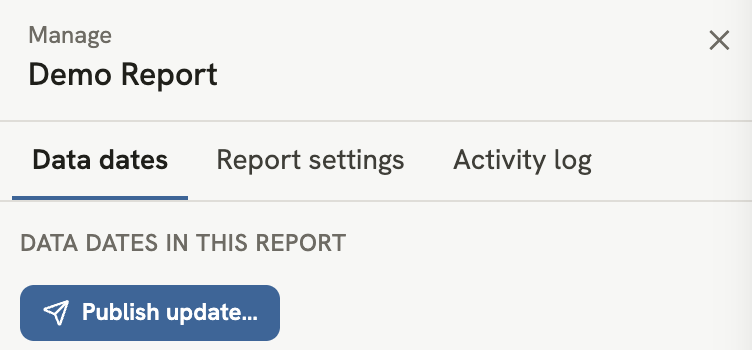
Press Manage, beside Share, to see a report's data dates, settings and activity.
Earlier data dates
The line above a report shows its data date. Choose an earlier date to see the report as it was then.

Correct a report updateReport editors
Change the baseline and run the update again, correct a data date, or remove an update. ECS shows what changes before it runs.
Sharing and access
Share just what is needed
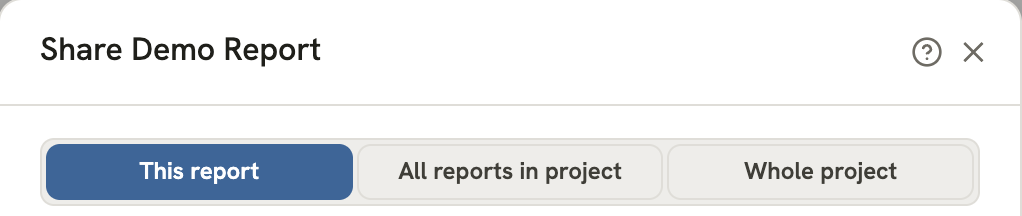
Share one report, every report in a project, only the schedule, or the whole project, from one Share window.
Request access
Open a link to something you cannot see, and press Request access. ECS tells you when an admin answers.
See one person's accessAdmins
In Org Settings, click a member or a team to see everything they can open, and why.
Clients see their projects
A client who has reports only now sees their projects on the portfolio. Clicking one opens their reports.
Turn pages offAdmins
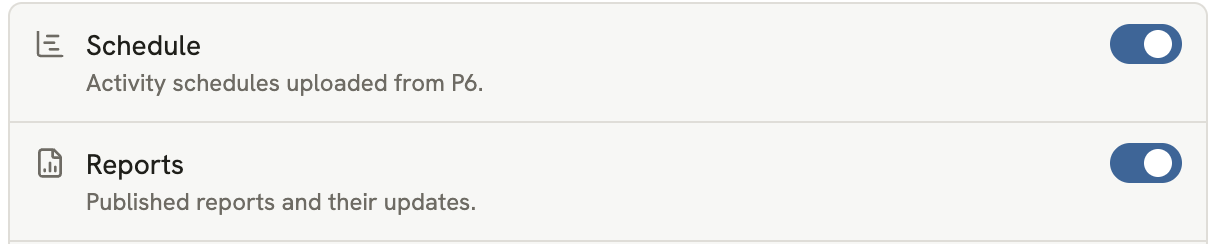
Turn Schedule or Reports off for the organisation, a folder or a project. Nothing is deleted.
Your brand colourAdmins
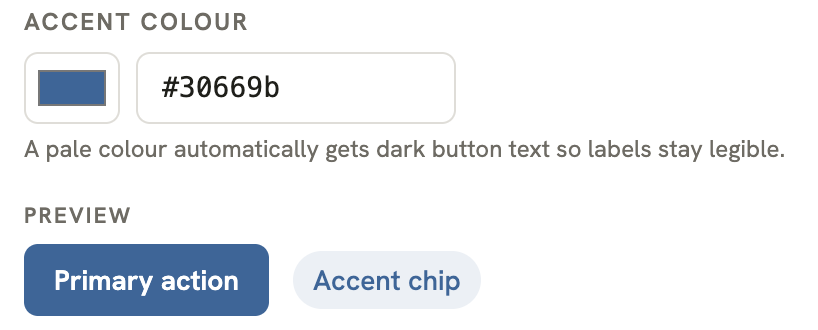
Set your brand colour in Org Settings. ECS uses it for buttons and highlights.
Fewer notifications
Notifications now cover only what needs you, such as a failed upload, an invitation or an access request.
Where things moved
A few things are in a new place, or work differently.
Questions or ideas? Email us at support@ecs.app.